
Follow your favorite wrestlers and get event updates through Mobile App push notifications, email, or SMS text messages. Available notifications can include bracket postings, mat assignments, on-deck updates, and results.
📋 Stay in the Loop with Notifications
FloWrestling offers three types of notifications: App Push, Email, and SMS Text Messages.
- App push and email notifications are available to all registered users.
- Mobile FloSports App: Instant push and in-app notifications sent directly to your phone screen for live event starts, breaking news, and highlight drops. Push notifications can only be enabled and managed inside the mobile app. Standard text message and data rates from your wireless carrier may apply.
- Email: Detailed event previews, weekend schedules, curated sports newsletters, and essential account or subscription updates delivered straight to your inbox.
- Subscriber-Only Feature: SMS Text Notifications: Fast, time-sensitive notifications for high-priority updates, such as sudden weather delays, schedule shifts, or final-round action. Text notifications require an active FloWrestling subscription and a valid mobile phone number.
🛠️ Set Up Notifications for a Wrestler
1. Find the Event
- Go to FloWrestling.com or open the FloSports app on iOS or Android.
- Log in to your account.
- Select Schedule.
- Find the event in the schedule or use Search.
- Open the event.
2. Choose Wrestlers to Follow
From the event page, you can find wrestlers through Teams or My Wrestlers.
To find a wrestler by team:
- Select Teams.
- Choose the participating school or club.
- Open the team's roster.
- Select the wrestler or wrestlers you want to follow.
To add a wrestler directly:
- Select Add Wrestlers.
- Choose a team.
- Select the wrestlers you want to follow.
Tip
When you add a wrestler, they are assigned a Bracket Highlight Color to make it easier to follow their progress through the bracket.
3. Choose Which Notifications You Receive
- Go to My Wrestlers.
- Select the bell icon next to the wrestler or team.
- Choose the notifications you want to receive:
- Brackets Posted
- Mat Assignments
- On Deck
- Results
4. Choose How You Receive Notifications
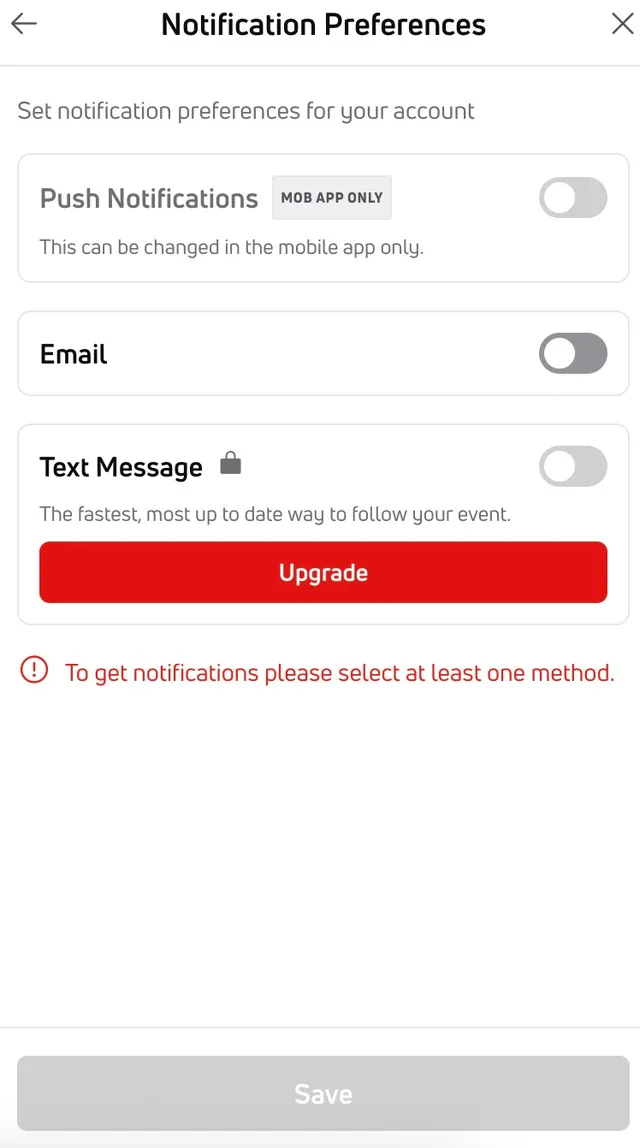
Open Notification Preferences, then choose how you want to receive notifications:
- Push Notifications: Receive notifications through the FloSports mobile app.
- Email: Receive notifications at the email address associated with your account.
- Text Message: Receive SMS notifications at your mobile number.
If you choose Text Message, enter or verify your mobile phone number, including the area code, then select Save.
SMS text notifications require an active FloSports or FloWrestling subscription. If you don't have an active subscription, you'll be prompted to choose a plan before completing SMS notification setup.
❓ Frequently Asked Questions
Why Am I Not Receiving Notifications for an Event?
FloWrestling event notifications depend on information being entered by the event's tournament staff.
For example, mat assignment or results notifications can only be sent when that information is actively recorded for the event. Available notifications may vary by event.
If you're using app push notifications, also make sure notifications are enabled for the FloSports app on your device.
Why Am I Being Asked to Subscribe for Text Notifications?
FloSports subscribers enjoy the exclusive benefit of SMS text notifications. For all users, we also offer convenient, free delivery via Email and the FloSports App.
How do I Stop Notifications?
For app push or email notifications:
- Return to the event.
- Open My Wrestlers.
- Open your notification preferences.
- Turn off the notifications you no longer want to receive.
For SMS text notifications:
Reply STOP to a FloWrestling notification text to opt out of future SMS notifications.
To receive SMS notifications again, reply START.
Do Text Messaging Rates Apply?
FloWrestling does not charge an additional per-text fee. Standard message and data rates from your wireless carrier may apply.
Need More Help?
Return to the Help Center and select Contact Us at the bottom of the page to submit a support request.